How to Use AI Skills (No Coding Required)
A fully non-technical guide: install and run AI skills in Claude.ai, Claude Desktop, ChatGPT, and Manus by uploading a ZIP file. No terminal, no coding, just chat interfaces.
Think of skills like apps for your phone, except they are for your AI assistant. Just as you install a weather app to get a forecast, you add a skill so your AI learns to do something new. This guide assumes no coding knowledge and walks you through it step by step.
What is a skill, really?
A skill is a package of instructions that teaches the AI to handle a specific task. A few examples:
- A tax skill teaches the AI to help with income tax forms
- A localization skill teaches it to write correct Hebrew and handle RTL direction
- A government services skill teaches it to work with the Population Authority and National Insurance
Skills IL has over 180 verified Israeli skills across 12 categories, all free and open source.
First time? You do not need to install anything on your computer or hold a developer account. All you need is the tool you already chat with (like ChatGPT or Claude) and a browser.
What you need to start
Just two things:
- An AI tool you chat with: Claude.ai, Claude Desktop, ChatGPT, or Manus
- A browser to visit Skills IL and download the skill
Installing is three simple steps: find a skill, download it as a file, and upload that file to your tool.
1Find a skill that fits you
Browse the skills library and search by what you need.
How to find the right skill:
- Search by keyword in the search bar, for example "income tax" or "Hebrew"
- Filter by category in the side menu
- Watch the trust score: a higher score means the skill passed more thorough security checks
- Glance at the install count: a popular skill usually works well
2Download the skill from the site
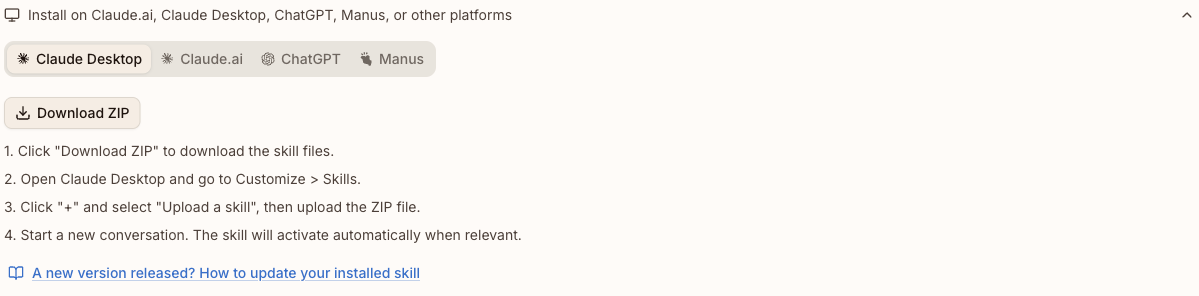
On the skill page, open the "Install via Claude.ai, Claude Desktop, ChatGPT, Manus and more" section, pick your tool's tab, and click "Download ZIP". You get a single file (a ZIP file).
3Upload the skill into your tool
Now pick the tool you use and upload the file you downloaded:
First, turn on the required capability: go to Settings → Capabilities and enable Code execution and file creation. Without this toggle, skills will not work (on an organization account, the admin enables it under Organization settings → Skills).
- Go to claude.ai and sign in
- In the menu, click Customize → Skills
- Click the + button, then + Create skill, then Upload a skill
- Drag or pick the ZIP you downloaded, and make sure the toggle next to the skill is on
- Open a new conversation, the skill loads automatically when needed
Here too you first enable Code execution and file creation under Settings → Capabilities.
- Open the Claude Desktop app
- Go to Settings → Capabilities → Skills
- Click Upload skill and drag or pick the ZIP. The ZIP must contain a folder with a valid SKILL.md file
- Switch the toggle next to the skill on
- Close the settings window and open a new conversation
Skills in ChatGPT is generally available on the organization plans (Business, Enterprise, Edu, and Healthcare), and OpenAI's pricing page lists it as beta on the personal plans (Free, Go, Plus, Pro). On Enterprise and Edu it is off by default, so your workspace admin has to turn it on first (OpenAI plans to turn it on by default for Enterprise workspaces on July 23, 2026).
- Sign in to chatgpt.com
- On an Enterprise or Edu workspace, first make sure your admin turned Skills on
- Click your profile icon and select Skills
- Click Create, choose Upload from your computer, and pick the ZIP. ChatGPT scans the skill before it becomes available
- Open a new conversation and the skill is available
- Go to manus.im and sign in
- In the side menu, click the Skills tab
- Click + Add (top corner), then Upload a skill, and pick the ZIP. Manus also accepts a .skill file, an uncompressed folder, and even a direct import from a GitHub repo URL
- In a new conversation, type "/" and choose the skill from the popup list
Claude Desktop loads skills once at the start of a session. If the skill does not appear, fully quit the app (Quit, not just close the window) and reopen it.
Developers working in a code editor like Cursor or Claude Code: you have a faster path with a single command that installs the skill automatically. See the getting started guide.
4Use the skill
After installing, just talk to the AI as usual and it will use the skill automatically when the task is relevant:
- Installed a tax skill? Ask "help me fill out form 101" and it knows what to do
- Installed a localization skill? Ask "translate this text to Hebrew" and get natural Hebrew, not a mechanical translation
- Installed a government services skill? Ask "what is the process to renew a passport?" and get organized info
5Update an installed skill
Skills get updated from time to time: the author adds capabilities, fixes bugs, refreshes stale info. The skill you installed does not update on its own, so when a new version ships you update it manually.
To update, just repeat the same steps: download a fresh ZIP from the skill page, delete the old skill in your tool's settings, and upload the new ZIP.
To know when a new version ships without checking yourself, save the skill to your list (the heart button on the skill page). You will get a notification in the site bell and a weekly email with the updates.
Frequently asked questions
I uploaded the skill but it does not work?
Two quick checks. First, in Claude.ai and Claude Desktop, make sure you enabled Code execution and file creation in settings, skills will not run without it. Second, in Claude Desktop the skill only loads at the start of a new conversation, so if it does not appear, fully quit the app (Quit) and reopen it.
Which tools does this work with?
This guide covers chat tools: Claude.ai, Claude Desktop, ChatGPT, and Manus. Skills also work in developer tools like Claude Code, Cursor, GitHub Copilot, and Windsurf, where installing is even faster. Each skill page shows the exact list of supported tools.
Is it safe?
Every skill goes through an automated security review that includes static code analysis, external scans, and a manual check, and gets a trust score that reflects its safety level. Skills are instruction files, they do not run code on your computer on their own. That said, no review process can guarantee a complete absence of vulnerabilities, so it is always worth glancing at the trust score and the security breakdown on the skill page before using it. Full details are in the Terms of Use.